MockVerse
Placement Officer User Manual
A complete guide to the Institution Dashboard for placement officers
Version 1.1 | August 15, 2026
Prepared for Placement Officers, TPO teams, faculty coordinators, and institution administrators
| Accuracy basis. This manual is based on the current running Placement Officer UI and the current institution/payment/report source. Unused code was not documented as user-facing behavior unless it is reachable in the active UI. |
Part 1: Role, Access, and Sign-In
1.1 Placement Officer Role
In MockVerse, the Placement Officer experience is the Institution Dashboard. The interface labels the signed-in persona as Placement Officer.
The workspace is designed for institution teams that create mock interview events, enroll participants, monitor event progress, review AI results, export reports, and manage institution payment methods. New Placement Officers can use the Guided Tour for an interactive introduction to this workflow.
1.2 Signing In
- Open https://aideafirst.com/apps/mockverse/.
- Select the Institution account type.
- Confirm the role card shows Institution and Placement Officer / Faculty.
- Enter the assigned email and password.
- Select LOGIN AS INSTITUTION.
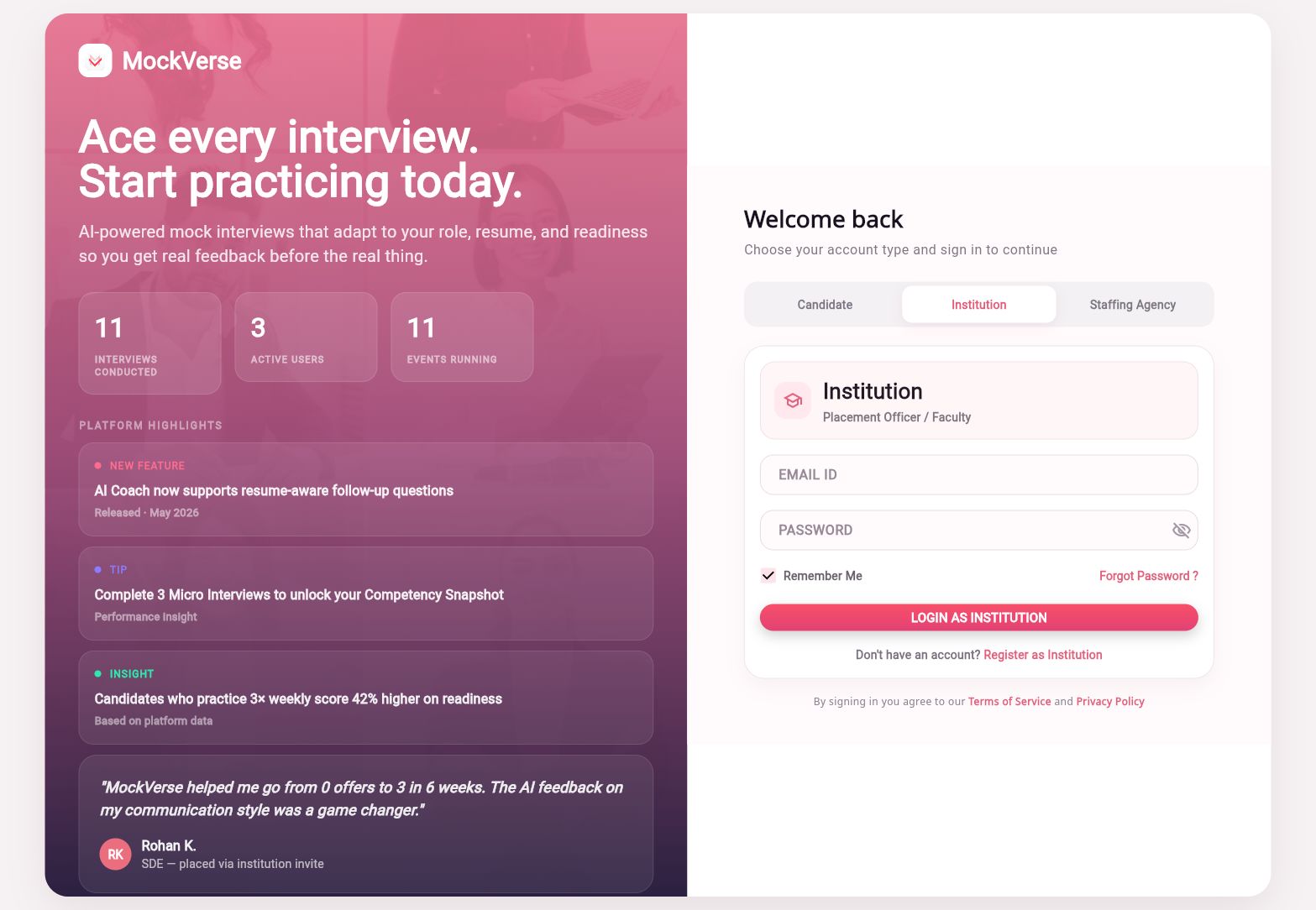
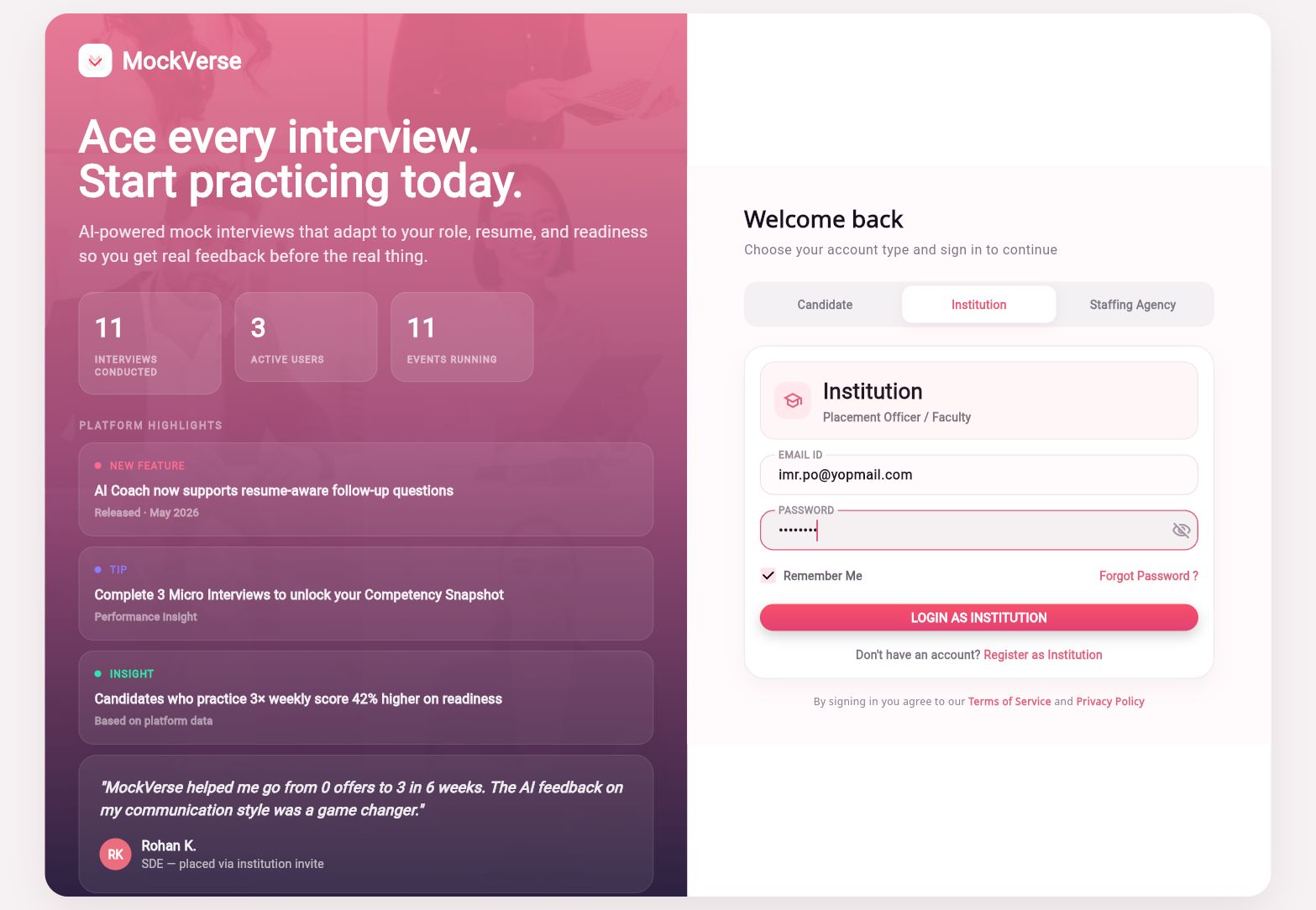
| No new users created. This manual was prepared by signing in with the provided Placement Officer account only. The Register as Institution link was not used. |
1.3 Enablement and Capability Locks
The Institution Dashboard supports an enablement gate. If the institution is not approved or a capability is disabled, the UI can show locked states such as Institution enablement is in progress, Event creation is disabled, or Interview insights are disabled. In those states, event creation, participant management, results, and reports remain unavailable until admin approval or capability enablement is complete.
For an active and enabled account, Settings can show Account status: Active, Create events: Enabled, Bulk enrollment: Enabled, and Report sharing: Enabled.
Part 2: Dashboard Overview
2.1 Landing Dashboard
After sign-in, the Placement Officer lands on Dashboard. The left navigation is organized into Main, Analysis, and Account groups. The available sections are Dashboard, My Events, Participants, Event Results, Reports, Payments, and Settings.
The dashboard hero includes Create Draft Event and View My Events. Summary cards show Total Events, Active Events, Upcoming Events, and Completed Events. The My Events panel lists active or upcoming events, and Quick Actions provides shortcuts to event creation, participant management, event results, and latest report email. The tour-shaped icon in the top bar reopens the Guided Tour.
2.2 Guided Tour
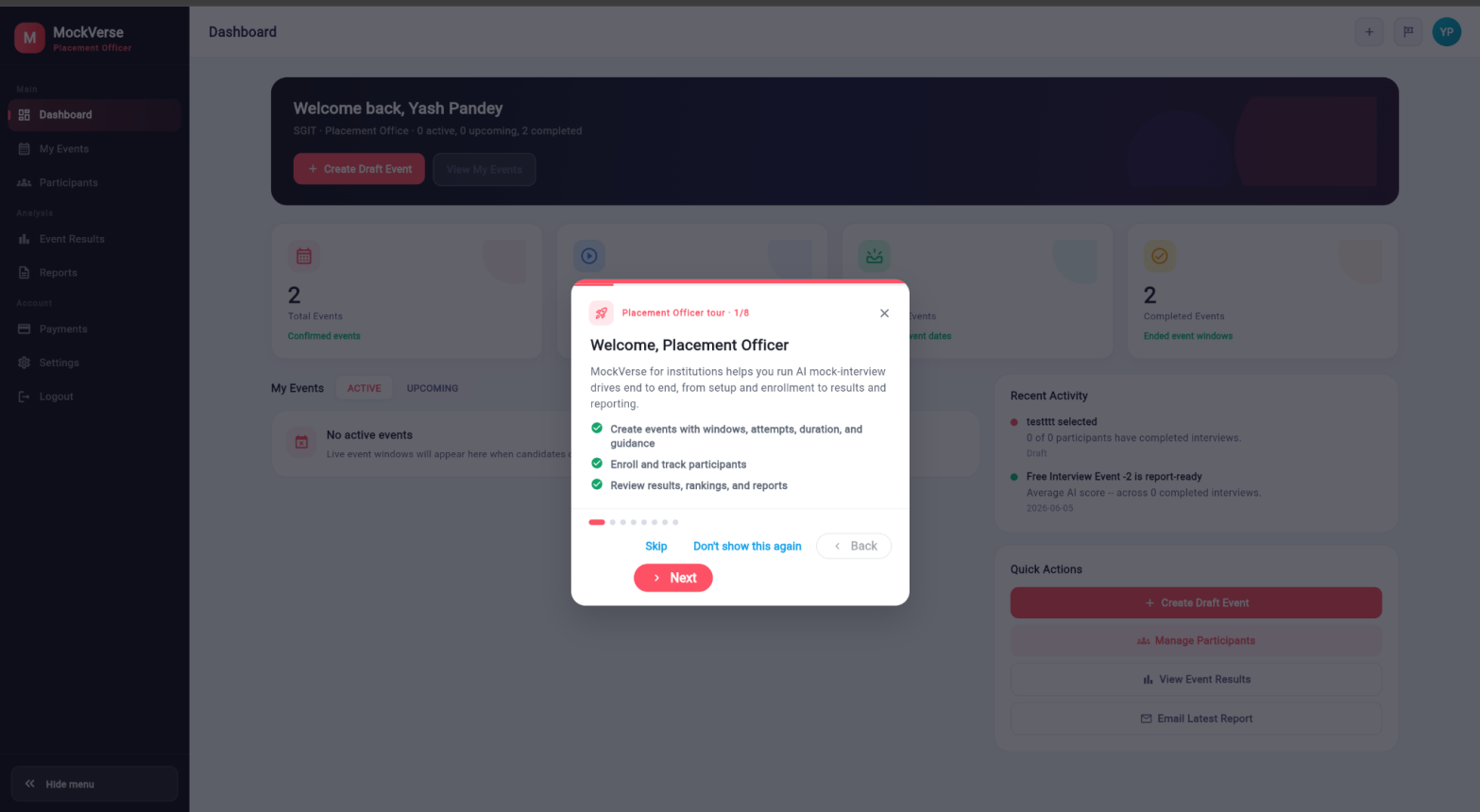
The Placement Officer Guided Tour is a short walkthrough of the Institution Dashboard. It introduces the main workflow for creating events, enrolling participants, tracking event progress, reviewing results, generating reports, and managing payments and settings.
For an eligible Placement Officer account, the tour opens automatically on the full Web Dashboard after the required dashboard controls are ready. It does not block the Dashboard from loading. The current tour is not presented in the dedicated phone/mobile dashboard experience.
2.2.1 Starting the Tour
When the tour opens, the page is dimmed and the current feature is highlighted. The tour header shows the current position, such as Placement Officer tour · 1/8. Read the information for the current step and select Next to continue. Use Back to return to an earlier step. Only one Guided Tour can be displayed at a time.
2.2.2 Tour Steps
| Step | What it covers |
|---|---|
| 1. Welcome, Placement Officer | Introduces MockVerse’s institution workflow from event setup and participant enrollment through results and reporting. |
| 2. Create an event | Highlights Create Draft Event, where event details, dates, attempts, duration, Interview guidance, Evaluation Criteria, and candidate visibility are configured. |
| 3. Add participants | Introduces participant enrollment, participant lists, status monitoring, and individual candidate insights. |
| 4. Track the event lifecycle | Explains how My Events shows Draft, Enabled, Active, and Completed events, together with progress and event details. |
| 5. Review event insights | Introduces Event Results, rankings, distributions, completion metrics, and available AI-generated summaries. |
| 6. Generate and share reports | Introduces report summaries, detailed reports, downloads, exports, and email-report actions available to the account. |
| 7. Payments and settings | Introduces payment activity, scheduled payments, account settings, and capability-related restrictions. |
| 8. You are all set | Summarizes the lifecycle as Create, Enroll, Enable, Review, and Report. |
2.2.3 Tour Controls
| Control | Action |
|---|---|
| Next | Moves to the next step. |
| Back | Returns to the previous step. It is unavailable on the first step. |
| Progress dots | Show the current position and allow direct movement to another step. |
| Skip | Closes the automatic tour. |
| Close icon | Closes the open tour. |
| Don’t show this again | Stops the current automatic tour from opening again. |
| Escape | Closes the tour on supported desktop browsers. |
| Create an event | Appears on the final step. |
Finishing, skipping, closing, or selecting Don’t show this again records that the current automatic tour has been dismissed for the signed-in Placement Officer account. This choice can be respected across later supported sessions and devices. A safe local fallback prevents a preference-loading issue from blocking the Dashboard.
2.2.4 Replaying the Tour
To view the walkthrough again, select the tour icon in the Dashboard’s top bar. Its tooltip is Replay walkthrough. A manual replay starts from the welcome step even after the automatic tour was completed or dismissed.
Replaying the tour manually does not change the account’s saved automatic-tour preference. Closing a manually replayed tour does not cause the automatic tour to start appearing again.
| Capability safety. If the institution account is active and event creation is enabled, the final Create an event action opens the event-creation flow. If event creation is locked or unavailable, the tour closes without bypassing the restriction. |
If a dashboard target is temporarily unavailable, the tour safely moves past that step. If the tour does not open automatically, it may already have been dismissed; use Replay walkthrough. If the replay icon is not visible, use the supported full Web Dashboard rather than the phone/mobile dashboard.
Part 3: Event Lifecycle
3.1 Lifecycle Stages
| Stage | Meaning | Placement Officer actions |
|---|---|---|
| Draft | The event is being configured and is not released to candidates. | Create or edit event details, prepare participant roster, review quote, and pay/enable when ready. |
| Enabled | The event has been paid for or released for the scheduled window but is not yet active. | Monitor readiness, payment status, and participant invitation state. |
| Active | The event window is open and eligible candidates can continue interview attempts. | Monitor enrollments, attempts, completion status, and participant insights. |
| Completed | The event window has ended. | Review final results, export reports, email reports, and analyze candidate performance. |
The live account contained one Active event, Interview Readiness Drive, with event code NZEQ-IYS9-0L86.
3.2 My Events
Select My Events to search and filter institution events. The page includes a search box, date range filter, and status chips: All, Active, Upcoming, Completed, Cancelled, Enabled, and Draft.
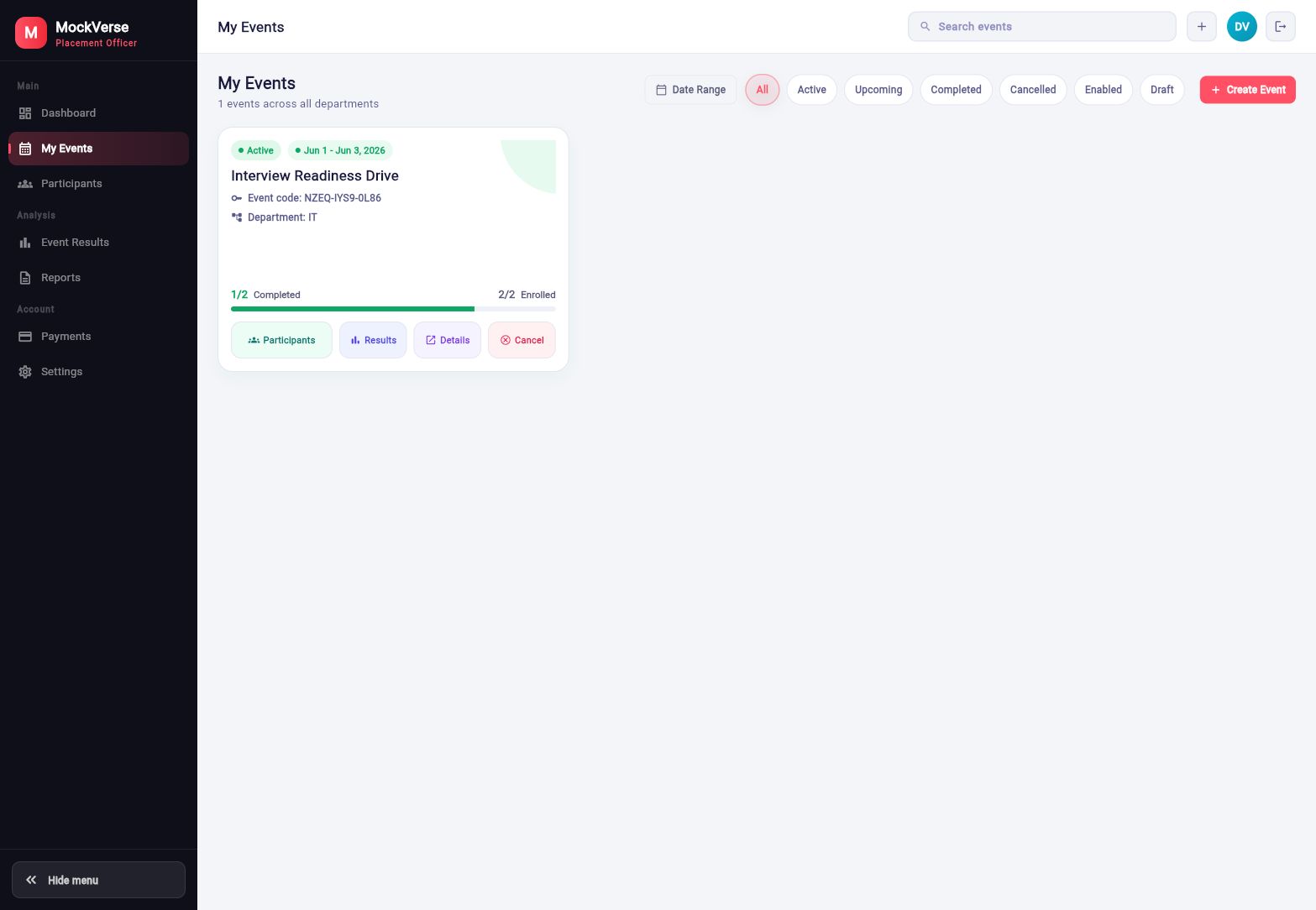
Each event card shows the event status, event dates, event title, event code, department, completion progress, enrollment count, and action buttons such as Participants, Results, Details, and Cancel.
3.3 Create Draft Event
Select Create Draft Event from the Dashboard or My Events to open the event setup dialog. Existing draft events use Edit Draft Event and are saved with Save Draft.
The form includes event details, timing, interview configuration, Interview guidance, and candidate insight-sharing settings. The Guided Tour’s final action can also open this flow when event creation is available.
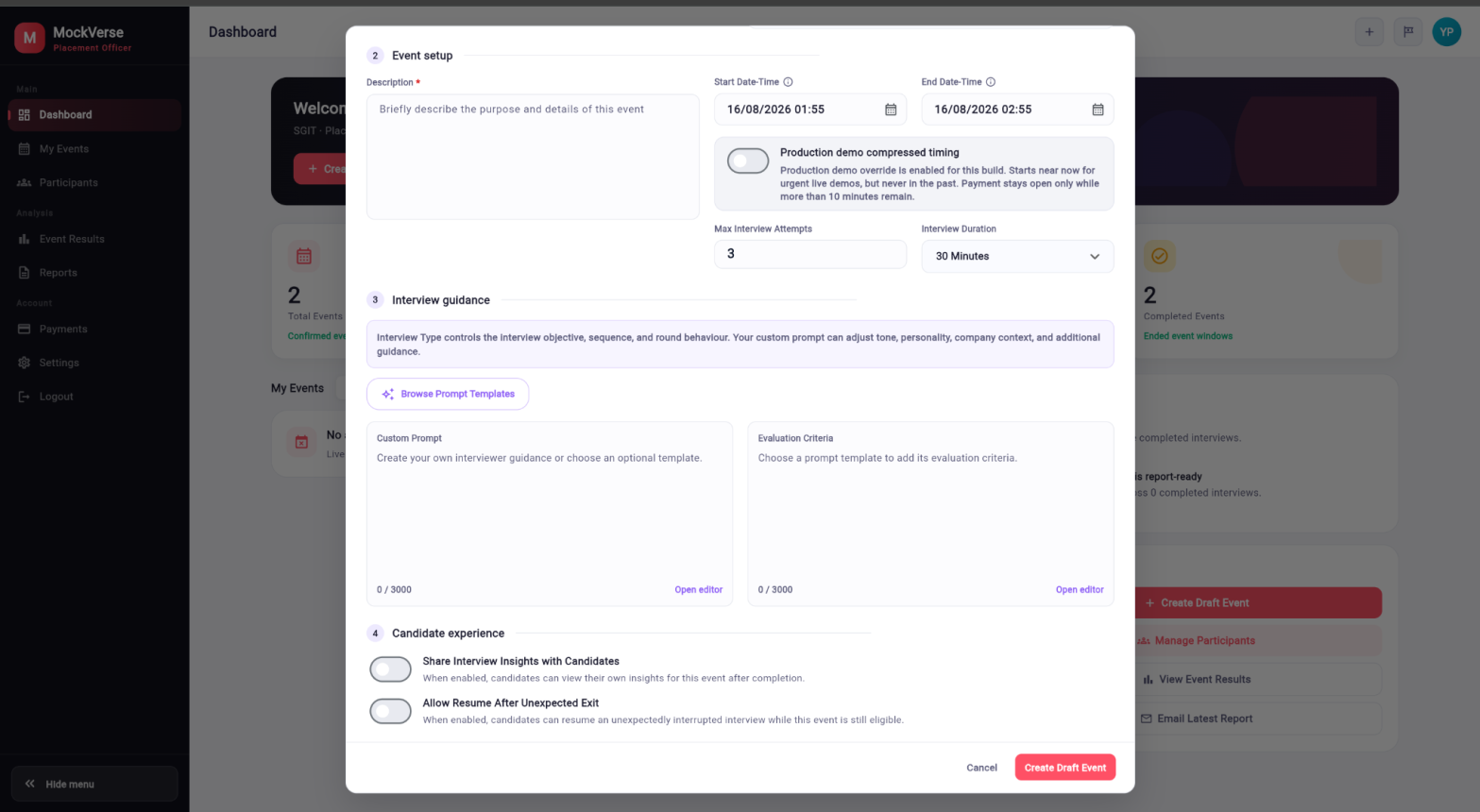
| Field or control | Purpose |
|---|---|
| Event Code | Auto-generated event code. The field is read-only. |
| Event Name | Required title displayed to the institution and candidates. |
| Department | Optional department label such as CSE, ECE, MBA, IT, or a placement office group. |
| Interview Type | Selects the primary interview round and controls the interview objective, sequence, and round behavior. Configured rounds include Recruiter Round, Screening Interview, Technical Interview, Design Interview, Managerial Interview, and Final Interview. |
| Description | Required purpose and context for the event. |
| Start Date-Time and End Date-Time | Defines the candidate event window. |
| Max Interview Attempts | Maximum attempts allowed per participant. The create modal default is 3. |
| Interview Duration | 15 Minutes, 30 Minutes, or 45 Minutes. The create modal default is 30 Minutes. |
| Browse Prompt Templates | Opens a searchable catalogue of optional paired templates. Each template contains interviewer guidance and matching evaluation criteria. |
| Custom Prompt | Adds optional interviewer guidance such as tone, personality, company context, relevant skills or topics, and institution-specific instructions. It supplements the selected Interview Type. |
| Evaluation Criteria | Defines the matching evaluation guidance and scoring emphasis used for the event. |
| Share Interview Insights with Candidates | Controls whether candidates can view their own event insights after completing an eligible interview. |
3.4 Timing Rules
Standard event creation uses a minimum lead time of 24 hours before the event start. Payment must be confirmed more than 1 hour before the start time. If the payment window is closed, the Placement Officer must move the start time before payment can proceed.
3.5 Event Details and Payment Status
Use Details on an event card to open the event-level summary. For the active event captured here, the dialog shows This event is active. Participants can continue eligible interview attempts. It also shows Payment Status: Paid, amount, credits, payment method, last update, description, status, start/end times, interview type, attempts per participant, and duration per attempt.
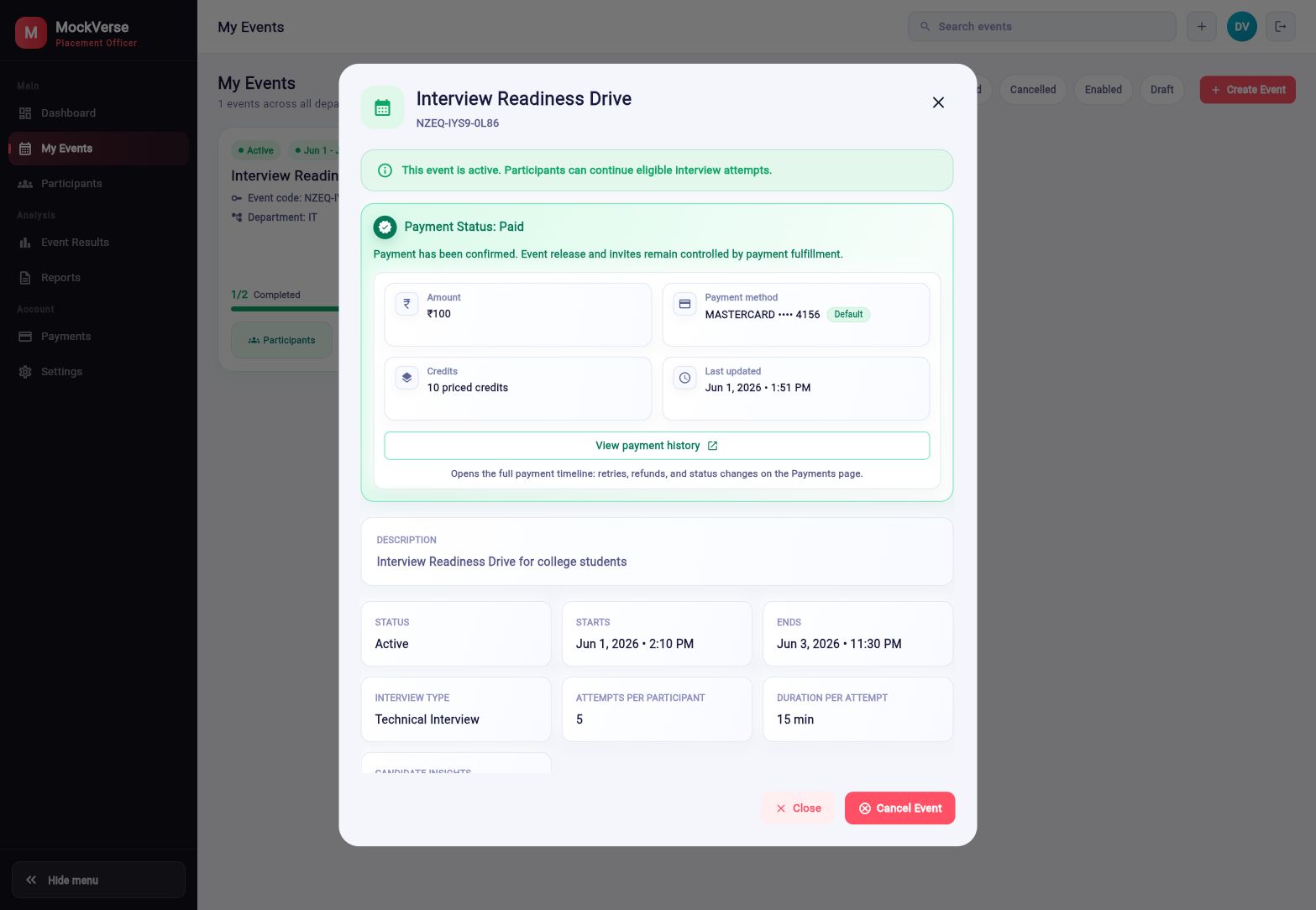
Current pricing reference: ₹100 INR per credit (Tax currently 0).
Part 4: Interview Guidance, Prompt Templates, and Candidate Insights
4.1 Interview Type and Interview Guidance
Interview Type is the primary control for the event’s interview objective, sequence, and round behavior.
The Interview guidance section allows the Placement Officer to add supplementary interviewer instructions and matching evaluation criteria. Guidance can be written manually or added from Browse Prompt Templates.
| Interview Type remains primary. Custom guidance can adjust tone, interviewer personality, company context, relevant skills or topics, and additional instructions. It does not replace the selected Interview Type. |
4.2 Browse Prompt Templates
Browse Prompt Templates provides ready-to-use pairs of interview guidance and Evaluation Criteria. Selecting one template adds both parts together so that the interview instructions and evaluation approach remain aligned.
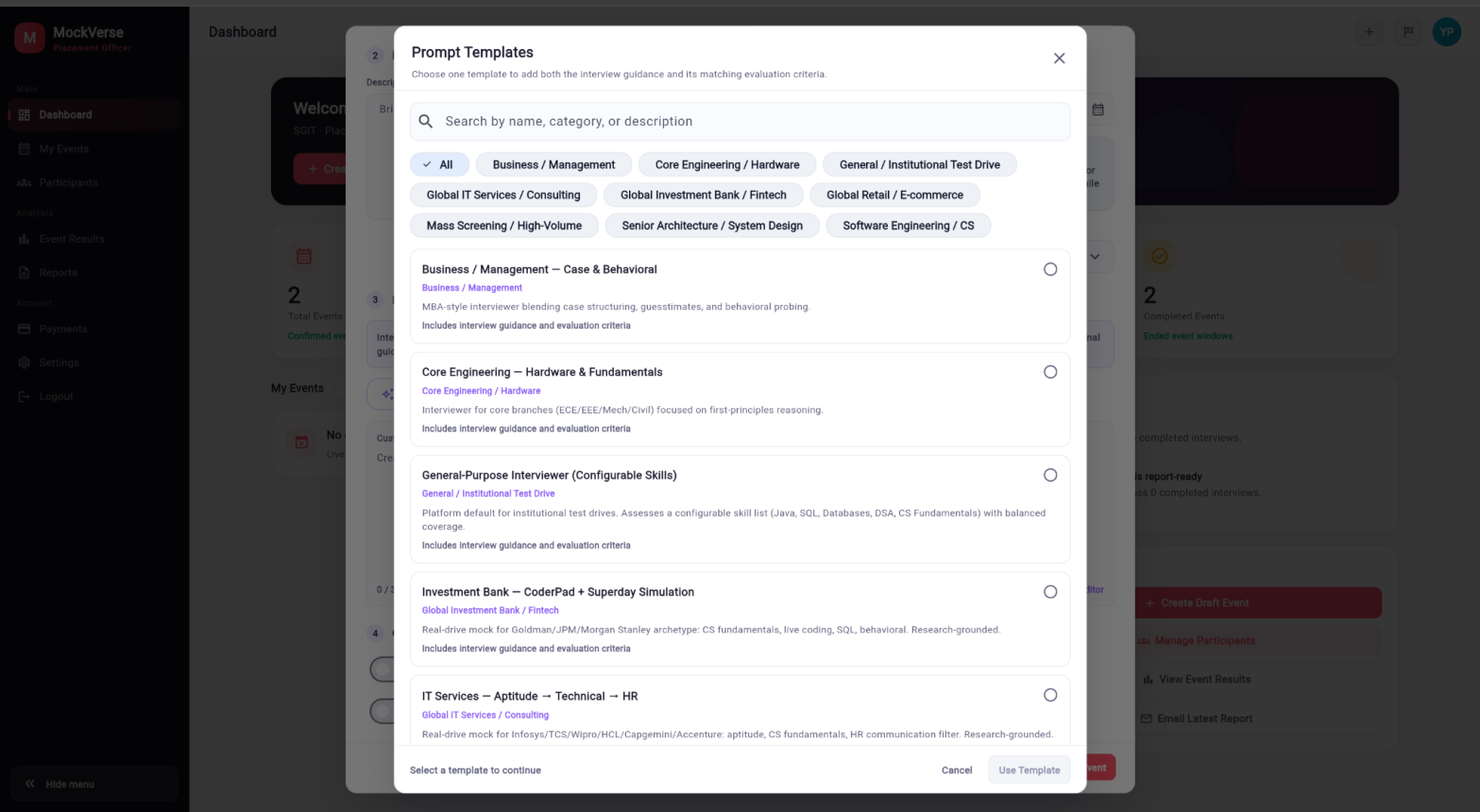
- Open Create Draft Event or Edit Draft Event.
- Scroll to Interview guidance.
- Select Browse Prompt Templates.
- Search by template name, category, or description, or use a category filter.
- Select a template card to preview it.
- Confirm that the footer shows Selected: [template name].
- Select Use Template.
- The dialog closes and both Custom Prompt and Evaluation Criteria are populated in the draft event form.
- Review or edit either field before saving the draft.
The dialog title is Prompt Templates. It includes Search by name, category, or description, an All filter plus the categories currently available, and cards showing the template name, category, description, and Includes interview guidance and evaluation criteria. Use Template remains unavailable until a template is selected; Cancel closes the browser without applying a template.
The catalogue can change, so use the templates and categories currently displayed in the browser.
4.3 Custom Prompt
Custom Prompt provides supplementary interviewer guidance. Use it to describe the desired tone, interviewer personality, company or role context, relevant skills or topics, seniority expectations, and additional institution-specific guidance.
Select the Custom Prompt panel or Open editor to open Edit Custom Prompt. Enter or revise the guidance and select Update.
| Example. “Focus on Python fundamentals, data structures, SQL joins, and project ownership. Ask a follow-up when an answer lacks a concrete example.” |
- Custom Prompt is optional and can be written manually without selecting a template.
- Selecting a template populates it automatically, and it remains editable afterward.
- It supplements rather than replaces Interview Type.
- The maximum length is 3,000 characters.
4.4 Evaluation Criteria
Evaluation Criteria defines what the interview analysis should emphasize when reviewing candidate answers. It can cover technical accuracy, communication clarity, reasoning, problem-solving approach, supporting examples, and role-relevant competencies.
When a prompt template is selected, its matching Evaluation Criteria is added automatically and the panel shows Paired automatically. Select the Evaluation Criteria panel or Open editor to open Edit Evaluation Criteria. Review or update the criteria and select Update.
| Example. “Evaluate technical accuracy, clarity of communication, problem-solving approach, and evidence from previous projects. Give greater weight to clear reasoning and supported answers.” |
- Evaluation Criteria is populated together with the selected template and remains editable afterward.
- The maximum length is 3,000 characters.
- The editor presents only the evaluation content relevant to the Placement Officer.
4.5 Reviewing and Saving Prompt Content
The Custom Prompt and Evaluation Criteria panels display the selected template name when applicable, a short preview, and a character counter. Each field supports up to 3,000 characters.
After applying a template, review both panels before selecting Create Draft Event or Save Draft. The selected content is saved with the event. Later changes to the template catalogue do not silently rewrite prompt content already saved with the event.
If either field exceeds 3,000 characters, the draft cannot be submitted until the content is shortened.
| State | What to do |
|---|---|
| No templates match this search | Change or clear the search text or category filter. |
| Templates could not be loaded | Select Retry. If templates remain unavailable, close the browser and enter Custom Prompt and Evaluation Criteria manually. |
| Template has no matching criteria | The incomplete template cannot be applied; select another template or enter both fields manually. |
4.6 Candidate Insight Sharing
The Share Interview Insights with Candidates switch controls whether candidates can view their own event insights after completing an eligible interview. If disabled, the Placement Officer can still review institution results, but candidate-side visibility is restricted.
This setting is separate from Custom Prompt, Evaluation Criteria, and Browse Prompt Templates. Changing prompt guidance does not automatically change candidate report visibility.
Part 5: Pricing and Payments
5.1 Credit Formula
Event quote pricing is code-verified in the institution quote service. Credits are calculated as:
| Formula | Verified values |
|---|---|
total_credits = participant_count x duration_credit_multiplier x max_attempts_per_participant | 15 minutes = 1 credit multiplier, 30 minutes = 2, 45 minutes = 3. |
total_amount = total_credits x price_per_credit + tax | Default price is ₹100 INR per credit. Tax is currently 0. |
Worked example: 50 participants x 30 minutes (x2) x 1 attempt = 100 credits = ₹10,000.
Quotes are generated while an event is in Draft, remain valid for about 30 minutes, and are invalidated by changes to participant count, roster fingerprint/version, duration, max attempts, event start/end, currency, price per credit, pricing version, or tax policy.
5.2 Payment Modes
| Mode | When used | What the Placement Officer does |
|---|---|---|
| SCHEDULED | Event start is far enough away for automatic saved-card collection. | Use a reusable institution card. The system attempts payment at T-48 hours and retries at T-24 hours if the first attempt fails. |
| INSTANT | Event start is closer and the app requires immediate payment. | Pay now through the one-time payment flow. |
| WINDOW_CLOSED | The event is too close to the start time. | Move the event start time; payment cannot be confirmed inside the closed window. |
5.3 Payments View
Select Payments to manage payment methods and review payment activity. The page has three tabs: Manage payment cards, Payment history, and One-time scheduled events.
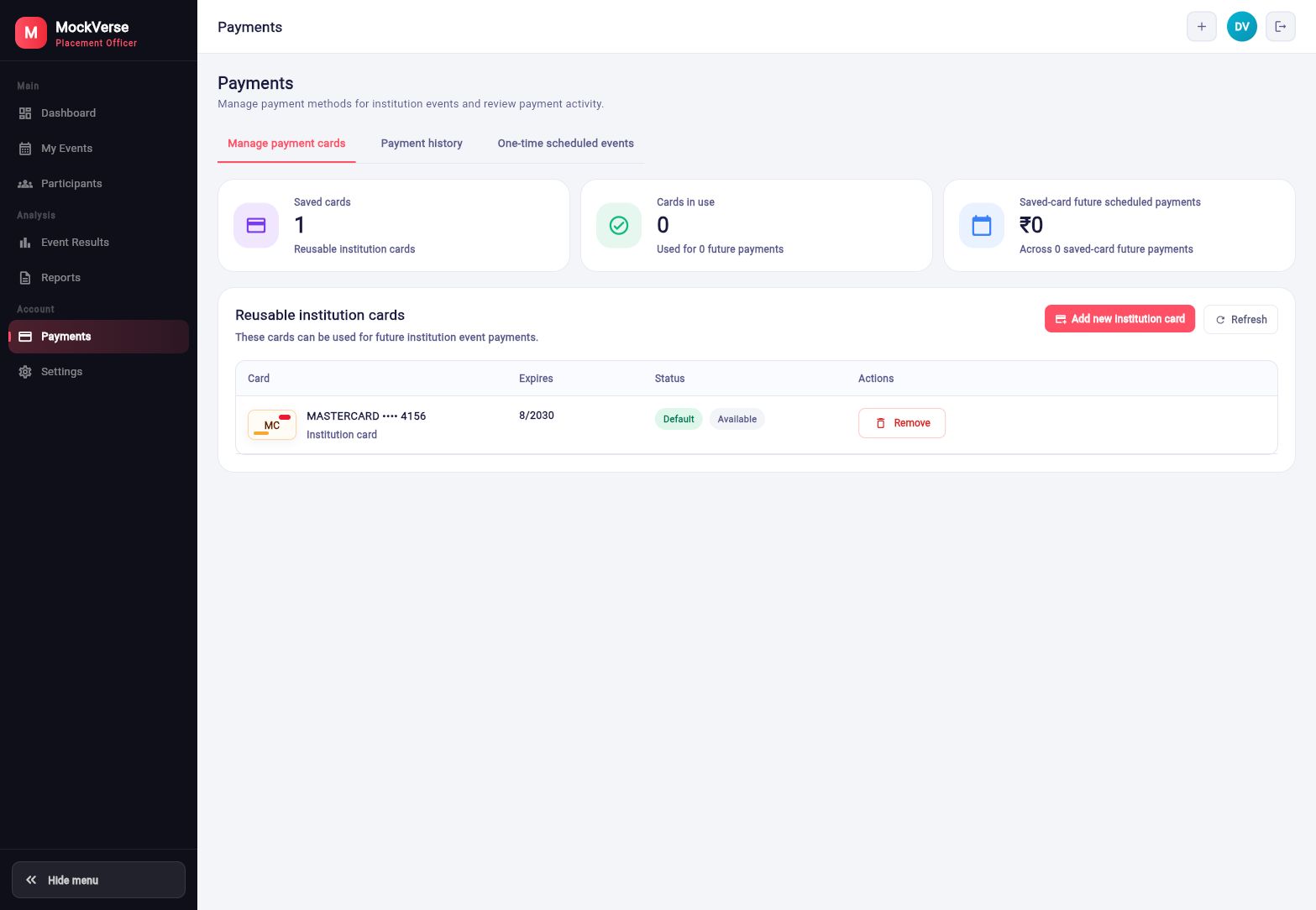
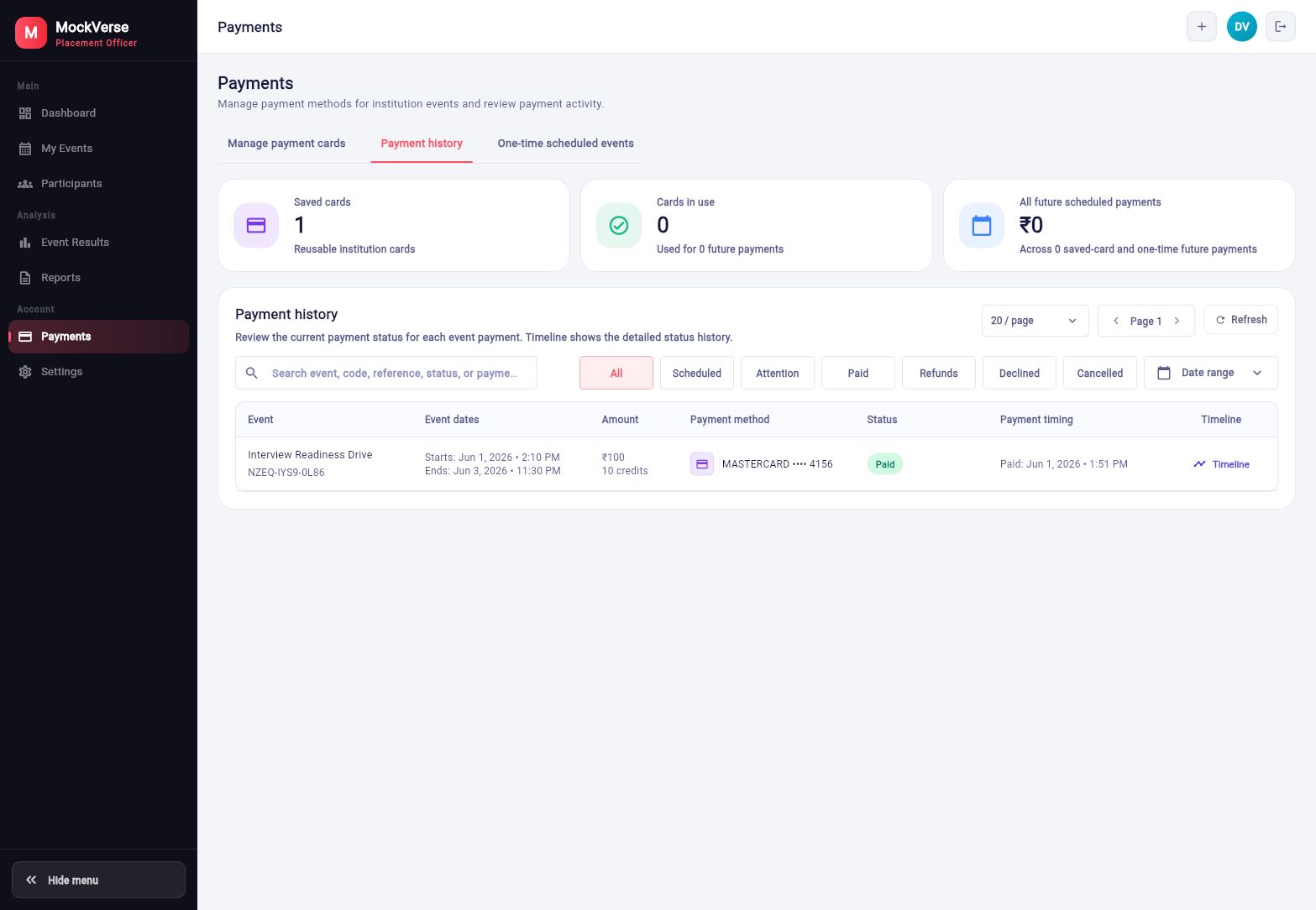
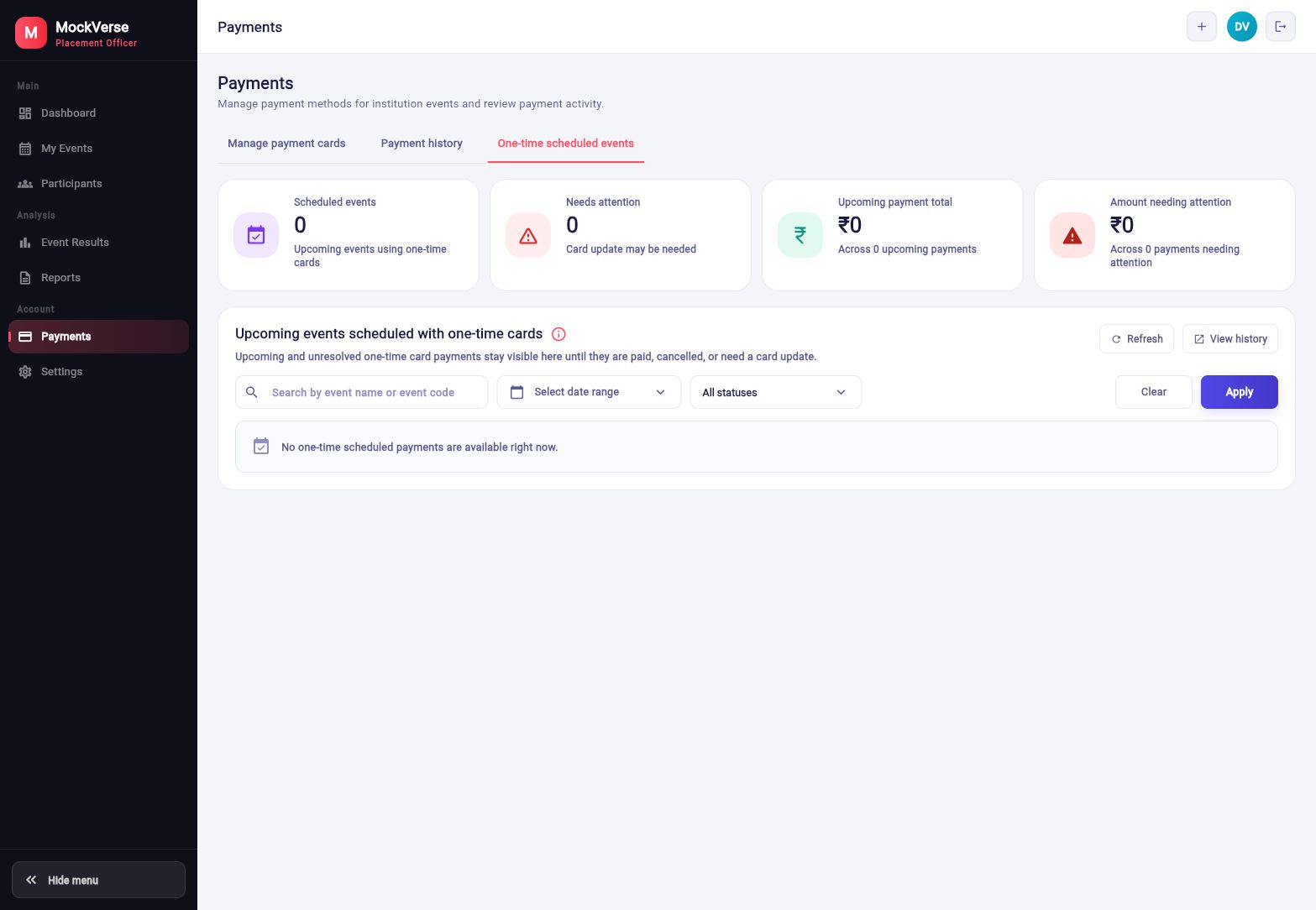
Saved cards can be used for future institution event payments. The reviewed account had one reusable MASTERCARD **** 4156 marked Default and Available.
Cancellation/refund states are handled by the payment rules. Scheduled-paid cancellations move through refund-pending/processing/refunded states. Instant payments cancelled under 48 hours are marked as non-refundable. Active-event cancellations may enter partial refund review or processing states.
5.4 Free First Event
| Account-dependent included event. When an eligible active institution account shows Free first event, its next new draft uses the included-event configuration: up to 50 participants, 15 minutes per interview, and 3 attempts per participant. These values are fixed for that included event, and no payment is required when it is enabled. If the label is not shown, continue with the normal quote and payment workflow displayed by the account. |
Part 6: Participants
6.1 Roster Monitoring
Select Participants to manage and monitor participants across institution events. The page supports filtering by Event State, selecting an event, searching by name/email/user ID/interview ID, and reviewing participant totals.
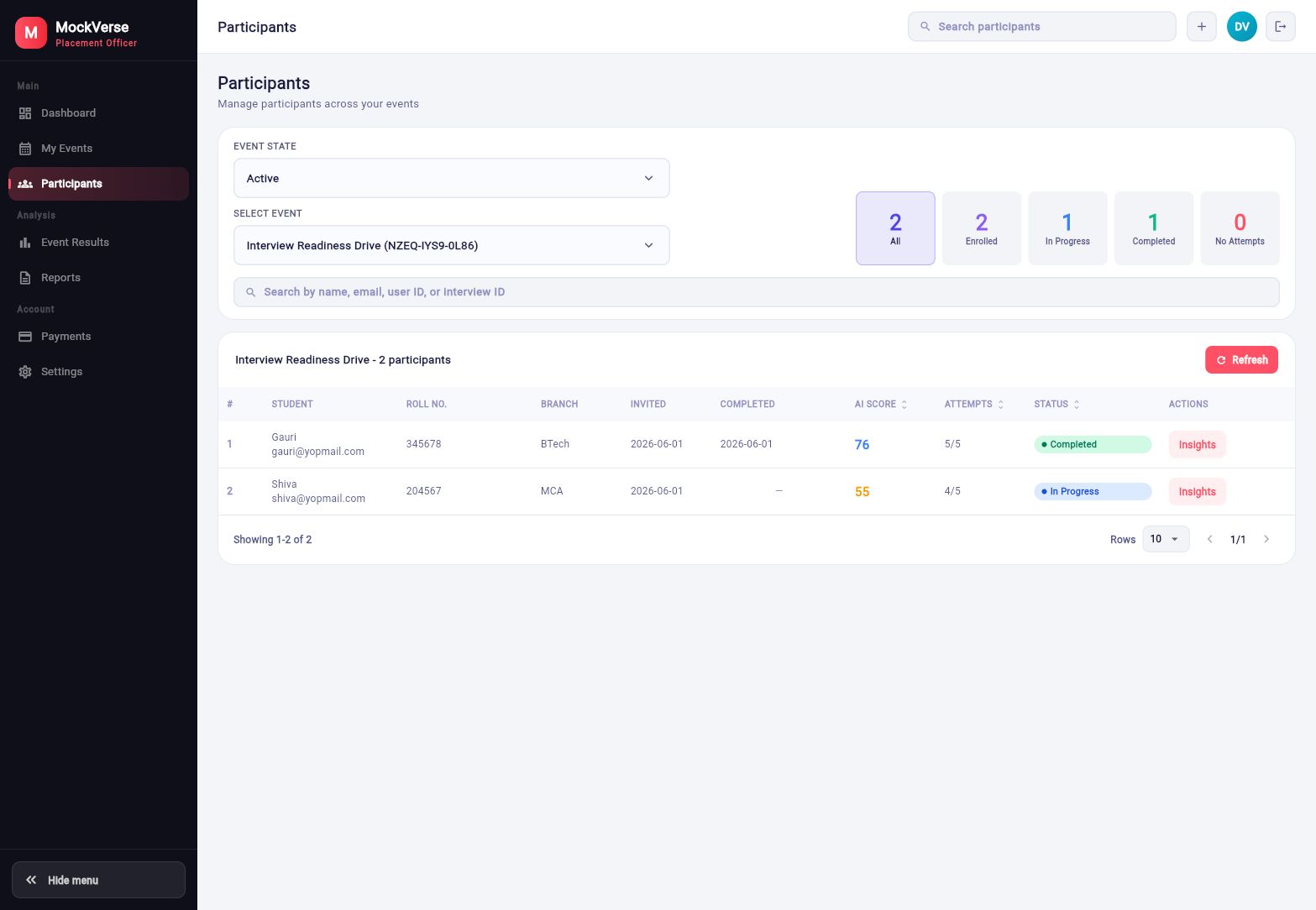
The participant table includes student name/email, roll number, branch, invited date, completed date, AI score, attempts, status, and an Insights action. The captured active event had two enrolled candidates, one completed candidate, and one in-progress candidate.
6.2 Adding Participants
Participant addition is available for draft workflows before event release. Source-verified add modes are manual entry and bulk CSV paste. Excel/XLSX upload is shown as unavailable in the implementation, with the UI directing officers to use Bulk CSV Paste.
| Mode | Fields and rules |
|---|---|
| Manual | Name, Email Address, Roll No. (Optional), and Branch / Dept (Optional). Email is required. |
| Bulk CSV Paste | Use columns name,email,roll no.,branch/dept. Include a header row. Paste at most 1,000 participant rows. Email is mandatory for each structured row. |
| Excel import | Unavailable in the current implementation. Use CSV paste instead. |
Changing participants in Draft changes the roster version/fingerprint and invalidates any existing payment quote.
Part 7: Event Results and AI Analysis
7.1 Results Summary
Select Event Results to review event performance. The page includes Event State, Select Event, stat cards for enrolled/completed/completion percentage/average score, top performer card, All Results table, Score Distribution, and Event Summary.
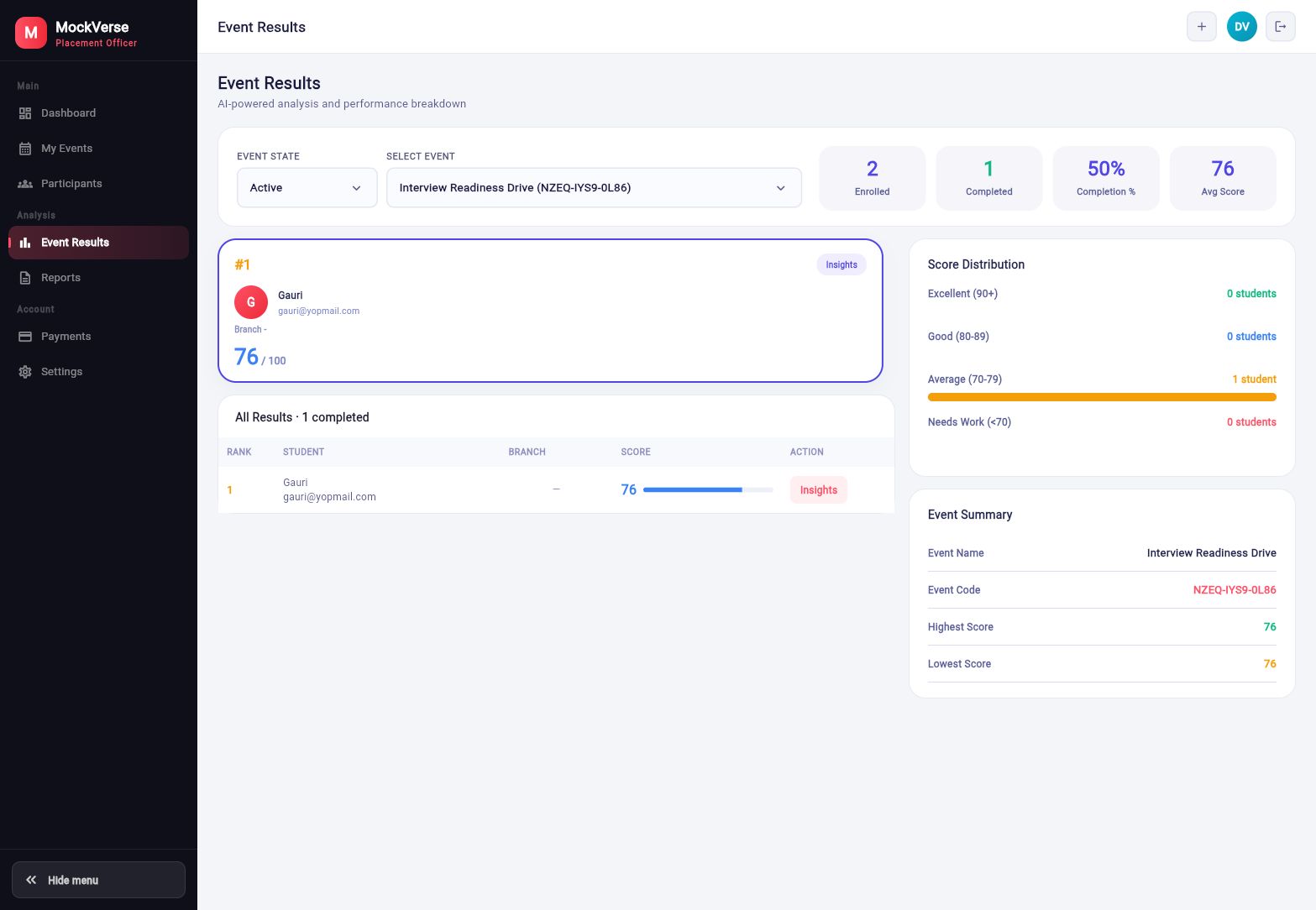
Event-level results in this dashboard use a 0-100 score scale. In the captured event, one completed participant had an event score of 76 / 100, and the score distribution placed that result in the Average (70-79) band.
7.2 Candidate Insights
Select Insights from a participant row or results row to open the candidate's event-scoped interview history. This page lists completed attempts with readiness percentages, AI score snippets, and View Details actions.
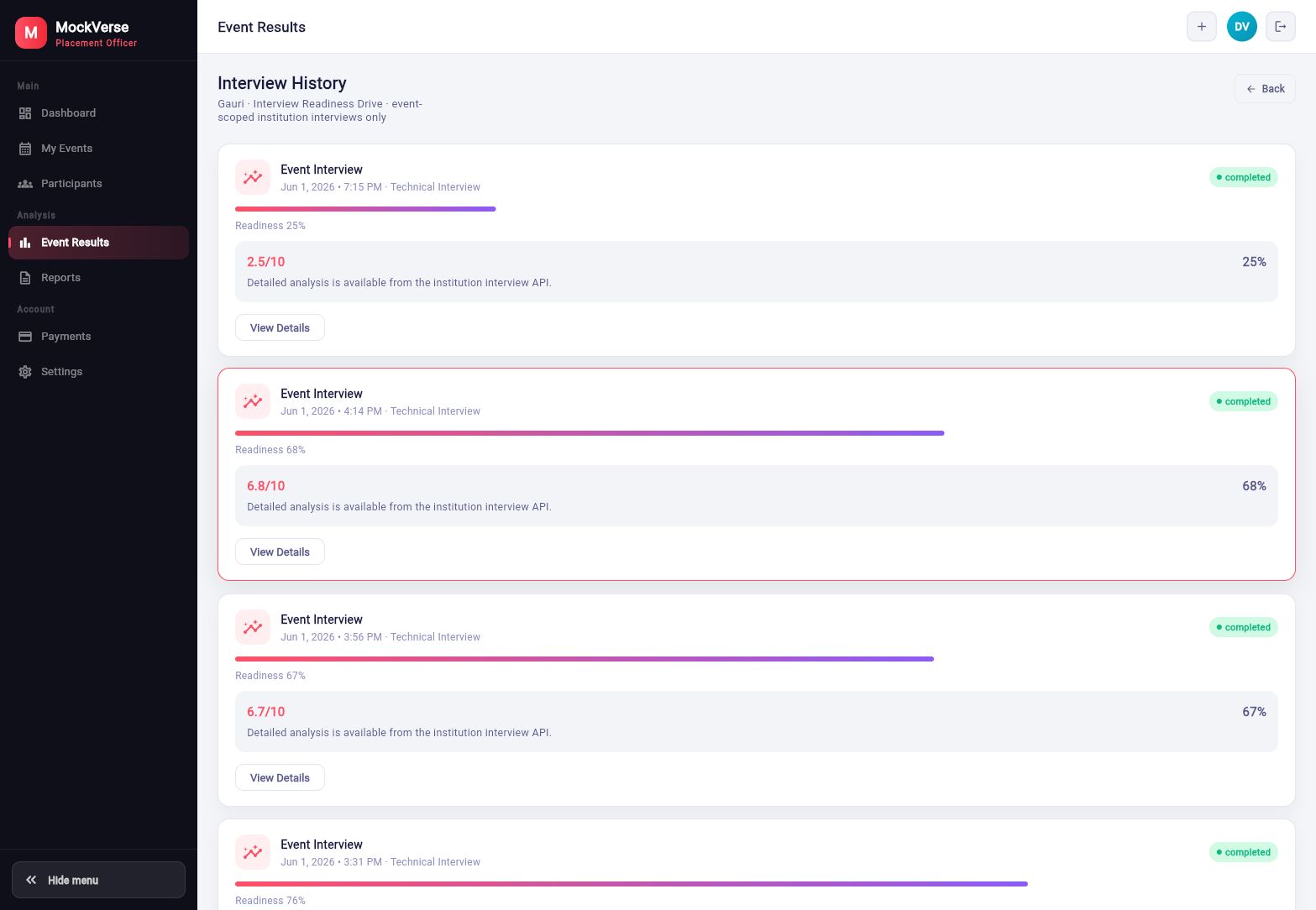
The interview review page shows the selected attempt's overall readiness, AI score, narrative summary, category scores, and a View Full Detailed Analysis button.
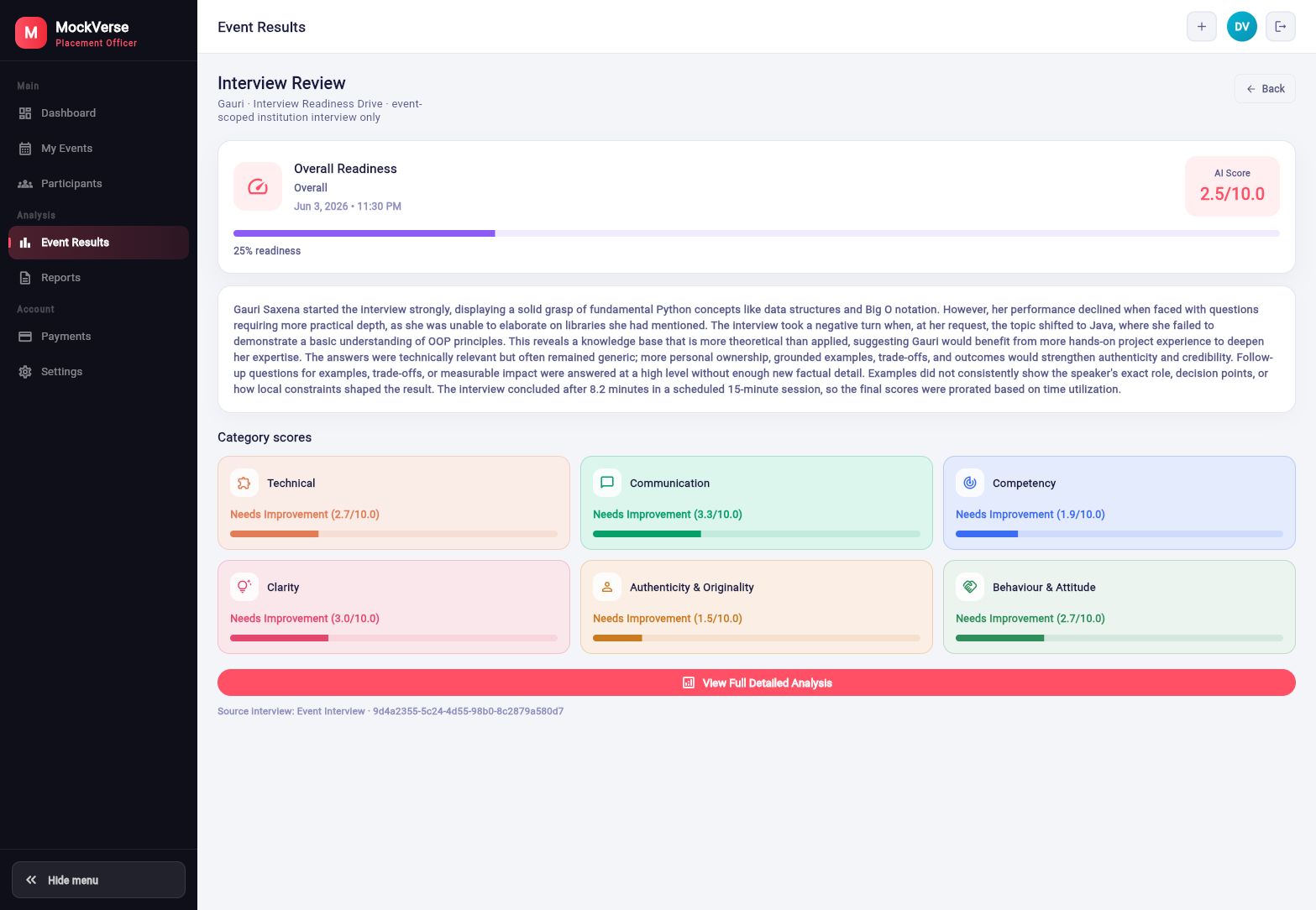
| Candidate visibility. Placement Officers can review institution-owned event analysis here. Whether candidates can see their own event report is controlled by the event's Share Interview Insights with Candidates setting. |
Part 8: Reports and Downloads
8.1 Reports Page and Event Selection
Select Reports from the left navigation to open Reports & Downloads. The page provides event-level placement analysis, downloadable reports, exports, and email-sharing actions.
Use Event State to filter events by lifecycle, and then use Select Event to choose the event whose report data you want to review. Only events available to the signed-in institution account are shown.
- Open Reports.
- Select the required Event State.
- Select an event.
- Wait while the Executive Summary loads or is generated.
- Review the briefing or use the report options displayed below it.
An Executive Summary can be available for an eligible selected event, including an active event when the required event conditions and qualifying completed, scored interview evidence are available. Changing the selected event loads its corresponding briefing.
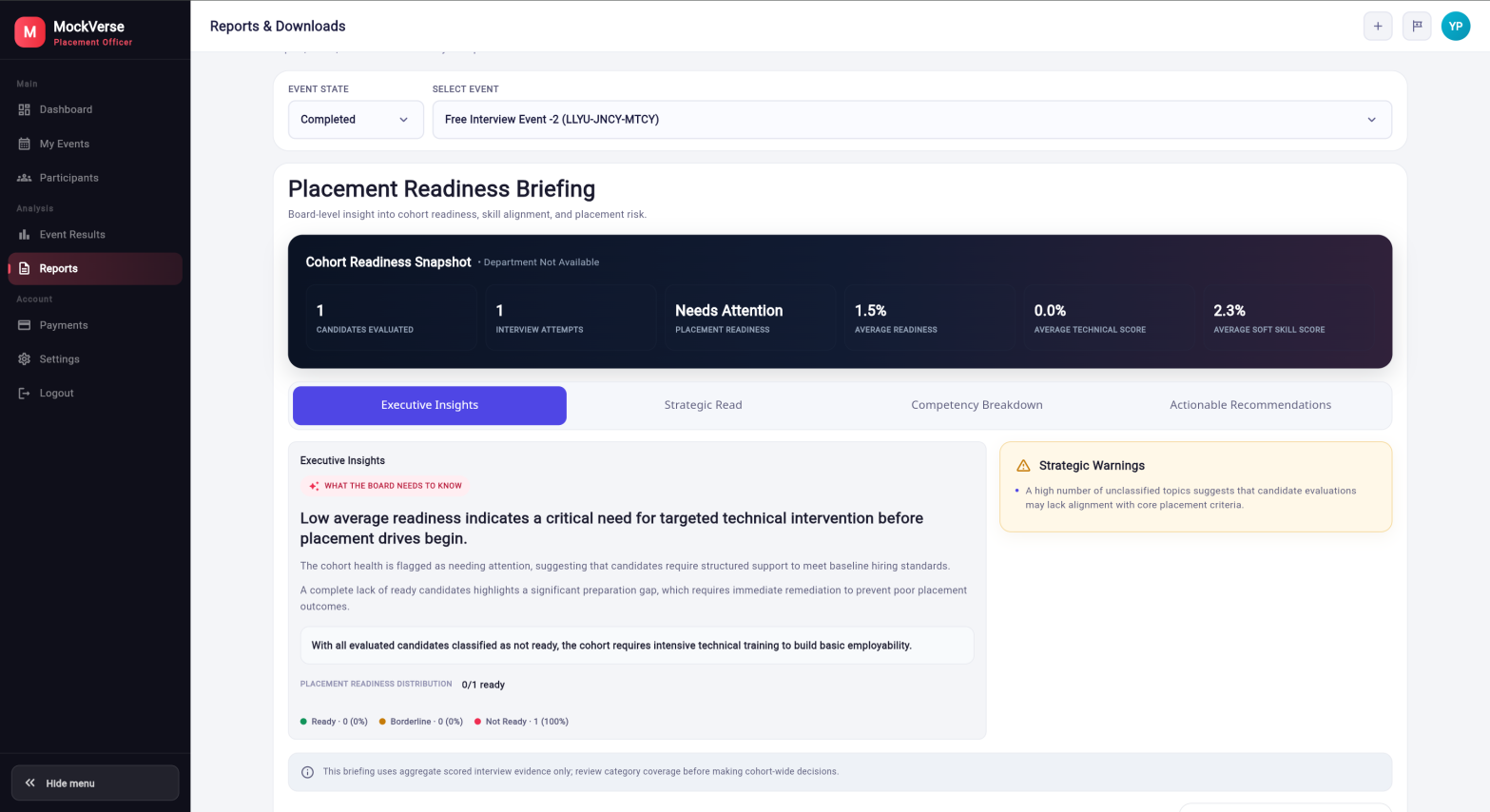
8.2 Executive Summary: Placement Readiness Briefing
The Executive Summary turns aggregate event interview evidence into a board-level Placement Readiness Briefing. It helps Placement Officers, TPO teams, Deans, and institution leaders understand cohort readiness, skill alignment, placement risk, and recommended preparation priorities.
After an eligible event is selected, MockVerse loads or generates the briefing automatically. A separate Generate button is not required.
| Aggregate view. The Executive Summary does not display candidate names, email addresses, roll numbers, individual transcripts, individual answers, or quotations. |
The briefing supports planning and placement-readiness decisions. Review it together with event coverage, candidate-level reports where authorized, and the integrity note shown at the bottom of the briefing. It is not a guaranteed hiring outcome.
| Option | Purpose |
|---|---|
| Executive Summary / Placement Readiness Briefing | AI-generated aggregate cohort intelligence with four interactive views and a dedicated PDF download. |
| Overview Summary PDF | A separate report-format option for previewing general event summary and readiness information. |
8.3 Understanding the Executive Summary
The Placement Readiness Briefing begins with a Cohort Readiness Snapshot and then provides four interactive views.
Cohort Readiness Snapshot
| Metric | Meaning |
|---|---|
| Candidates Evaluated | Number of candidates represented by qualifying scored interview evidence. |
| Interview Attempts | Number of eligible completed interview attempts included in the aggregate analysis. |
| Placement Readiness | Overall cohort-health classification, such as Needs Attention. |
| Average Readiness | Average readiness from the qualifying candidate-level results selected according to the event's scoring rules. |
| Average Technical Score | Aggregate technical performance when enough categorized evidence is available. |
| Average Soft Skill Score | Aggregate soft-skill performance when enough categorized evidence is available. |
The configured department appears beside Cohort Readiness Snapshot. Department Not Available appears when no reliable department value is available. Not Available or N/A can appear when aggregate evidence cannot support a metric; a missing value must not be interpreted as zero.
Executive Insights
The Executive Insights tab presents the main board-level interpretation: a headline describing the most important cohort finding, supporting explanation, a readiness interpretation, Placement Readiness Distribution, and Strategic Warnings when supported by the evidence.
The distribution groups evaluated candidates into Ready, Borderline, and Not Ready, with a count and percentage for each group. Strategic Warnings highlight evidence-supported risks such as low readiness, limited category coverage, or gaps affecting institution-wide conclusions. If the evidence supports no warning, the page says that no aggregate warning is currently supported.
Strategic Read
The Strategic Read tab organizes the cohort analysis into Key Wins, Critical Skill Gaps, and Placement Risks. The number of signals varies with the selected event's evidence.
Competency Breakdown
The Competency Breakdown tab presents aggregate competency scores and an interpretation of the cohort's technical and soft-skill performance. Its bars reflect only categories supported by the available scored interview data; missing category evidence is not a zero score.
The tab can show technical-versus-soft-skills interpretation, Cohort Technical and Cohort Soft Skills values, and a Top Performing Track. The track can display Not Available when comparison is unsupported. A configured event department is not the same as a verified top-performing track.
Actionable Recommendations
The Actionable Recommendations tab presents prioritized actions for institution leadership. Recommendations use priorities such as P1, P2, and P3 and include a title, suggested action, and Expected Impact / Target Shift. Expected impact is guidance, not a guaranteed numerical improvement or placement result.
Integrity Note
An integrity note appears below the briefing. It explains the evidence scope and reminds the Placement Officer to review category coverage before making cohort-wide decisions.
8.4 Downloading the Executive Summary
When the briefing is ready, select Download Executive Summary below the briefing to create and download the dedicated Executive Summary PDF.
The PDF includes the Placement Readiness Briefing title, Cohort Readiness Snapshot, Executive Insights, Placement Readiness Distribution, supported Strategic Warnings, Strategic Read, Competency Breakdown, top-performing-track availability, Actionable Recommendations, and the integrity note.
- The PDF contains the complete briefing, not only the tab currently selected on screen.
- Switching between tabs does not generate a separate report.
- The filename contains the event reference, Executive Summary, and a timestamp.
- On success, MockVerse confirms that the Executive Summary was downloaded.
- If PDF generation or download fails, a failure message appears and the download can be tried again.
8.5 Availability and Troubleshooting
| State | Meaning and action |
|---|---|
| Select an event to view its Executive Summary. | Choose an Event State and then select an available event. |
| Loading Executive Summary… | MockVerse is retrieving an existing briefing or checking its availability. |
| Generating Executive Summary… | MockVerse is preparing an aggregate briefing from eligible scored interview evidence. |
| Executive Summary will be available once interview data becomes available. | The selected event does not yet contain eligible completed, scored interview data. |
| Executive Summary is still being generated. Please retry. | Generation did not finish within the current wait window. Select Retry. |
| Executive Summary is temporarily unavailable. Please retry. | A temporary generation, validation, storage, or service problem occurred. Select Retry later. |
| Executive Summary is unavailable for this event. | The selected event does not currently satisfy the required report conditions. |
Availability requires an active Placement Officer account, an institution-owned event that is available for reporting, enabled results and authorized analysis/report access, a valid configured event end time, an unblocked payment/release state, and eligible completed, scored interview data. The current Executive Summary supports cohorts of up to 1,000 event participants.
If access is disabled, ask an administrator to enable the relevant results/report access. The Dashboard cannot bypass account or capability restrictions.
8.6 Other Report Formats
These formats remain separate from the Executive Summary and appear below the briefing under Available Report Formats.
| Report option | Purpose shown in the UI |
|---|---|
| Overview Summary PDF | Preview a general event summary and readiness trends, then download the PDF. |
| Detailed Summary PDF | Preview student-wise category scores and interview reports. |
| Excel Export | Download the current .xlsx scores-and-transcripts export after completed interviews are available. |
| Email Report | Send selected existing report documents to HOD, coordinator, or other recipients. |
8.7 Emailing Event Reports
Select Email Report to open the email dialog. The dialog supports comma-separated recipients, an optional message body, and selected attachments. Up to 20 recipients can be included.
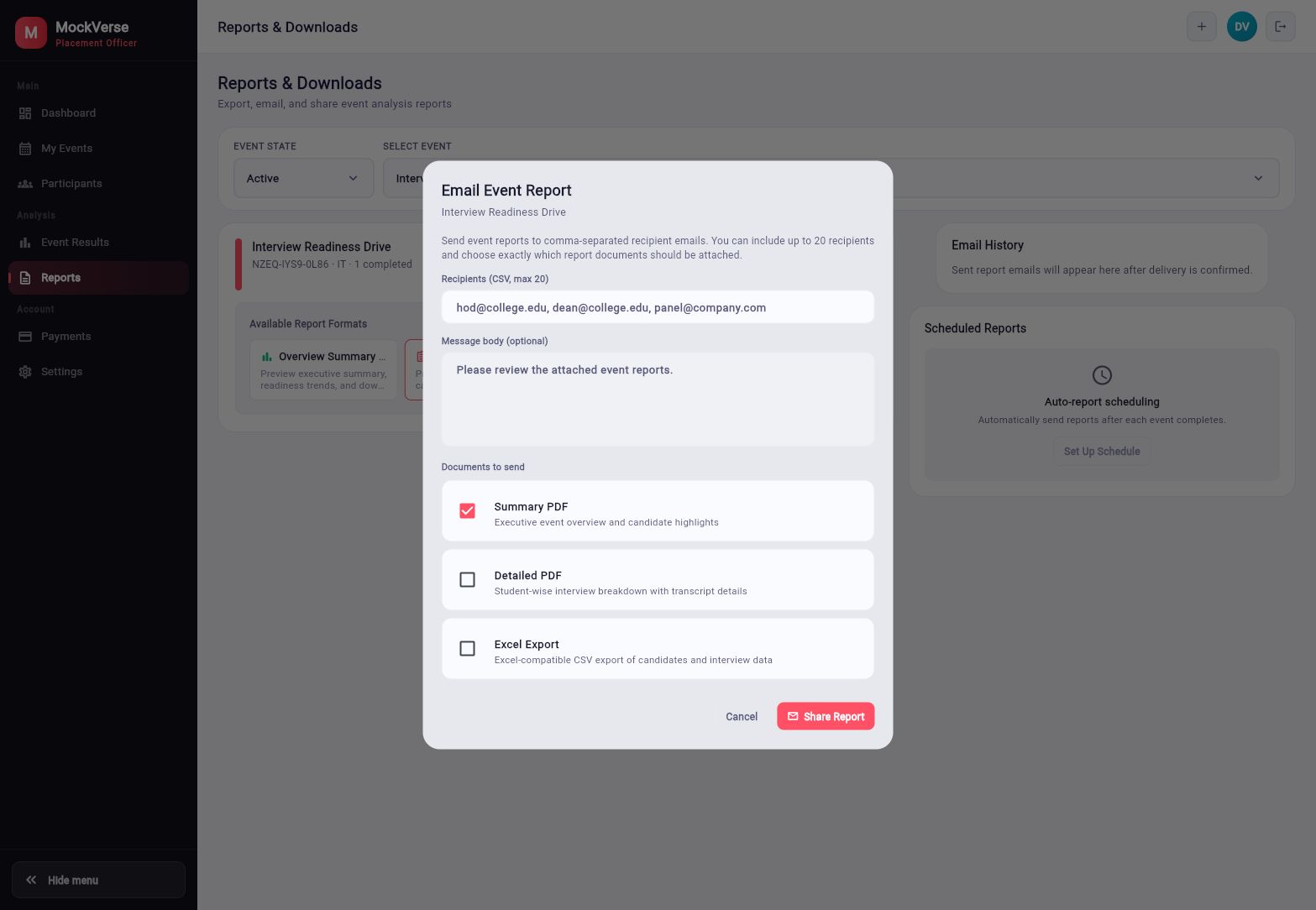
- Enter recipient emails in Recipients (CSV, max 20).
- Review or edit Message body (optional).
- Select one or more documents: Summary PDF, Detailed PDF, or Excel Export.
- Select Share Report.
The current email dialog does not list the dedicated Executive Summary PDF as an attachment option. Download it separately using Download Executive Summary.
Part 9: Settings
9.1 Institution and Profile Settings
Select Settings to review read-only institution context and Placement Officer profile details. Tenant and profile updates remain controlled by an administrator.
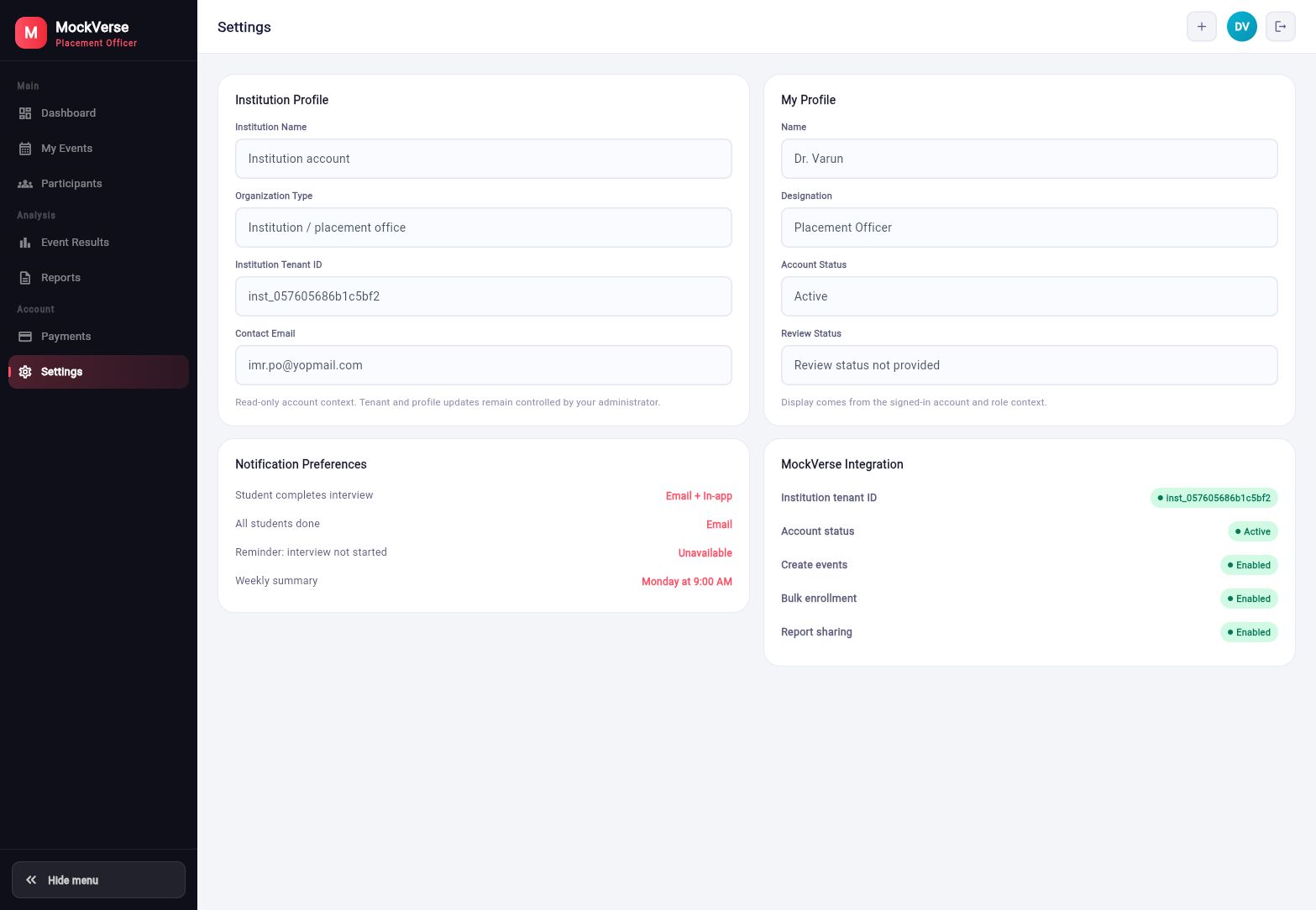
| Panel | Information shown |
|---|---|
| Institution Profile | Institution name, organization type, account reference, and contact email. |
| My Profile | Name, designation, account status, and review status. |
| Panel | Information shown |
|---|---|
| Notification Preferences | Student completion, all-students-done notification, reminder availability, and weekly summary schedule. |
| MockVerse Integration | Institution account reference, active status, create events capability, bulk enrollment capability, and report sharing capability. |
Part 10: Current Availability and Screenshot Inventory
| Item | Current availability |
|---|---|
| First free event | Eligible active institution accounts can receive an included first event with the fixed limits described in Section 5.4. |
| Excel participant upload | Excel import is currently unavailable; use Bulk CSV Paste. |
| Capability locks | Restricted actions remain unavailable until the account is approved and the relevant capability is enabled. |
10.1 Screenshot Inventory
| Figure | Screen |
|---|---|
| 1 | Institution login |
| 2 | Filled Placement Officer login form |
| 3 | Placement Officer Guided Tour over the Dashboard |
| 4 | My Events |
| 5 | Create Draft Event — Interview guidance |
| 6 | Event details and payment status |
| 7 | Prompt Templates browser |
| 8 | Manage payment cards |
| 9 | Payment history |
| 10 | One-time scheduled events |
| 11 | Participants |
| 12 | Event Results |
| 13 | Candidate Insights |
| 14 | Interview Review |
| 15 | Reports and Downloads — Placement Readiness Briefing |
| 16 | Email Event Report |
| 17 | Settings |